Functions in Power Query as in other programming languages is used for some actions which combined physically in some stack that could be repeated multiple times.
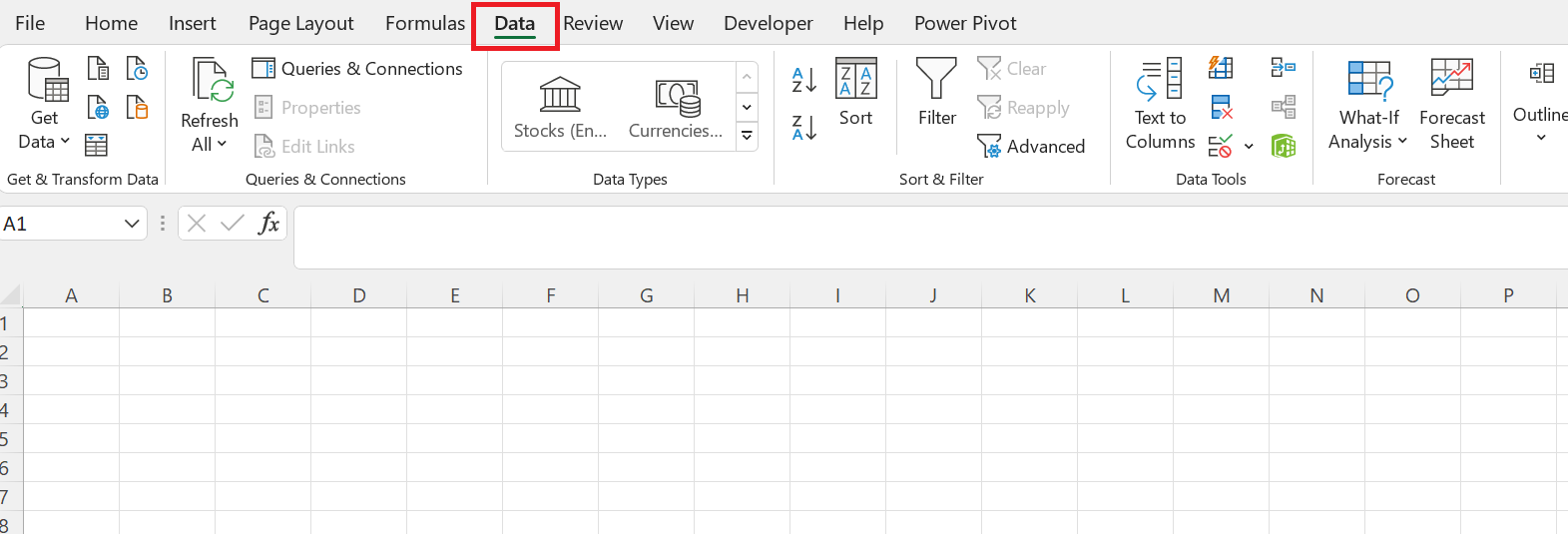
Today we present example how implement function that returns a files list. In this example we will use MS Office 365, Power Query is integrated in this program product. After run of the MS Excel and navigate to the tap “Data” we could use functionality of the Power Query:
We will divide our task into subtasks:
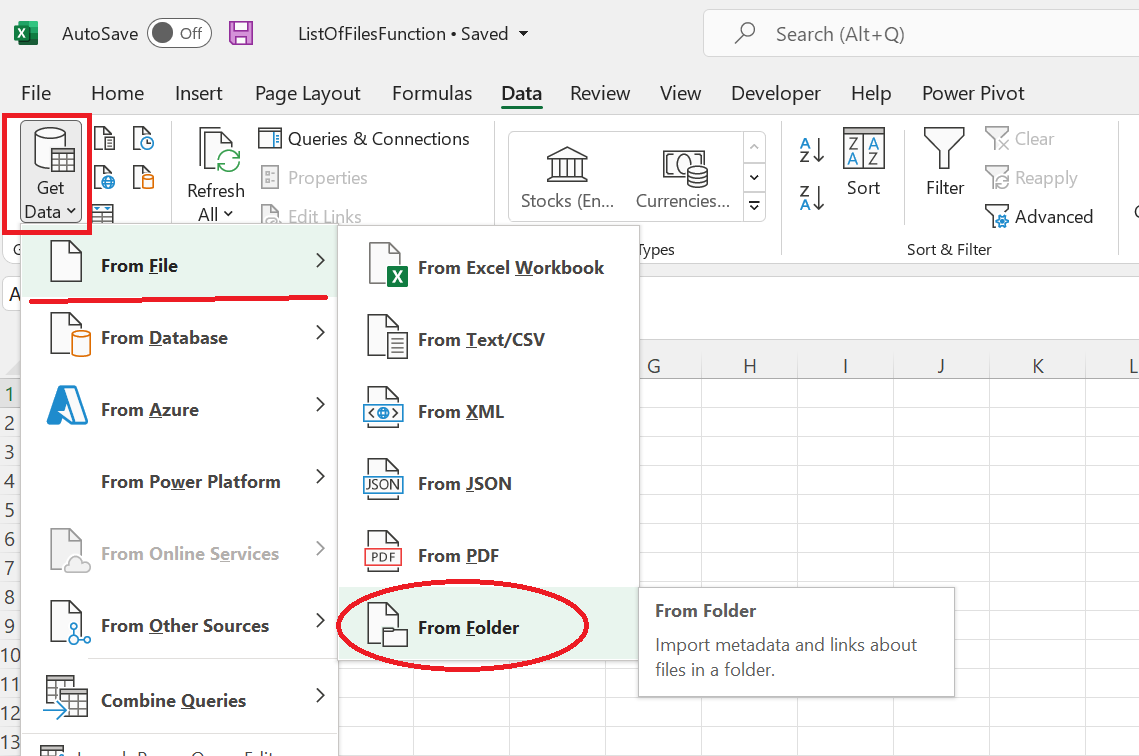
For subtask #1 we have to navigate to the tab Data then click on: Get Data->From File->From Folder:
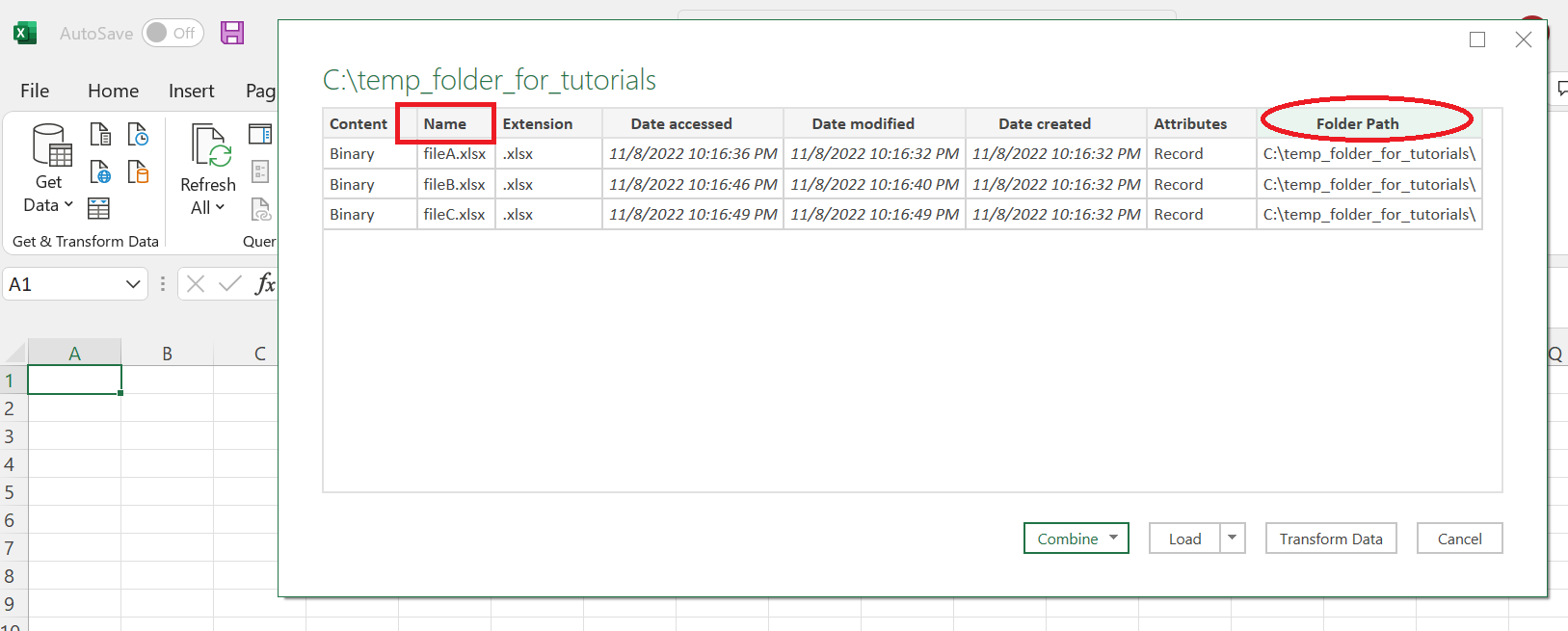
For example, we create a temp folder on the disk C destination. In your case you could use your working folder. There are no additional requirements. The folder could be also at the network folder. When Power Query connects to the target folder you will see a table with files content. At this step notice that in the next steps we will keep only two columns: Name and Folder Path.
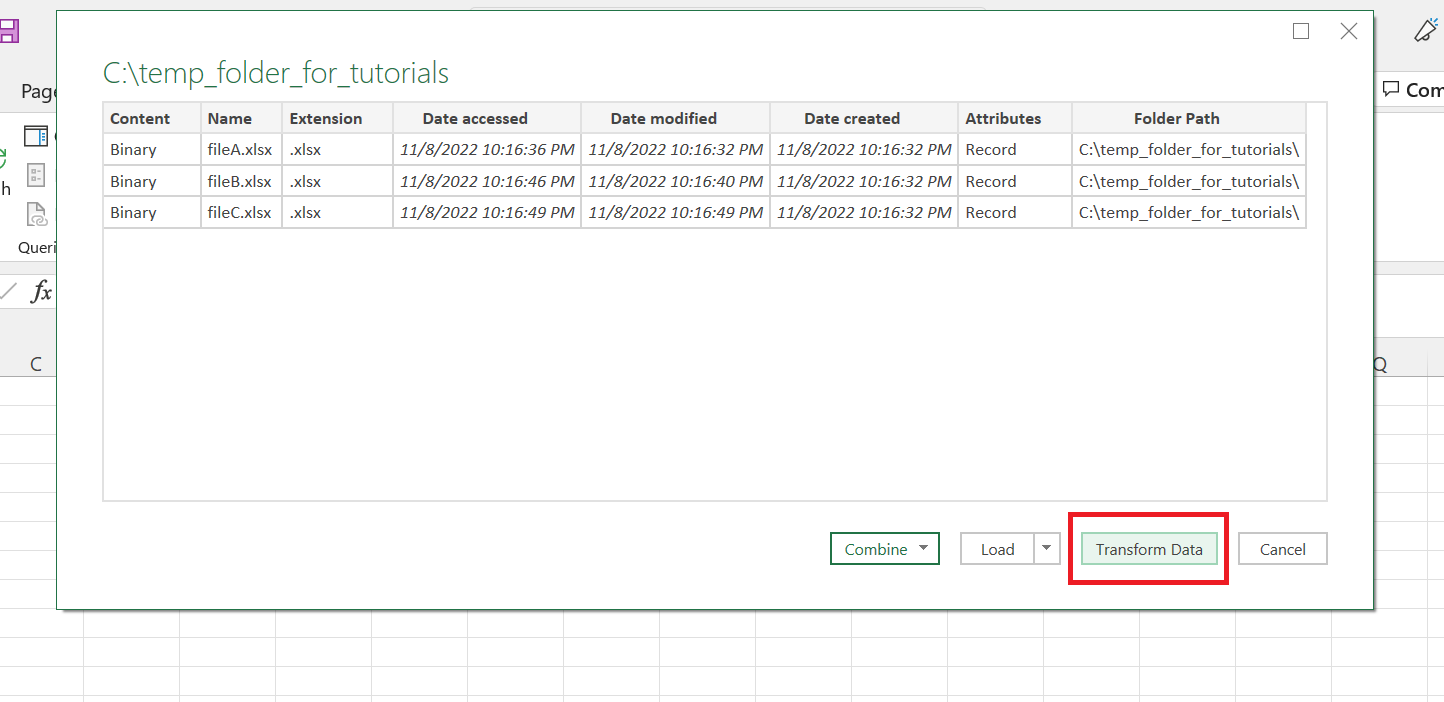
At the next step you should click on the button "Transform Data":
When you click on Transform Data you will navigate to Power Query Editor. To the left side we have query temp_folder_for_tutorials. There is a generated table in the middle of the editor.
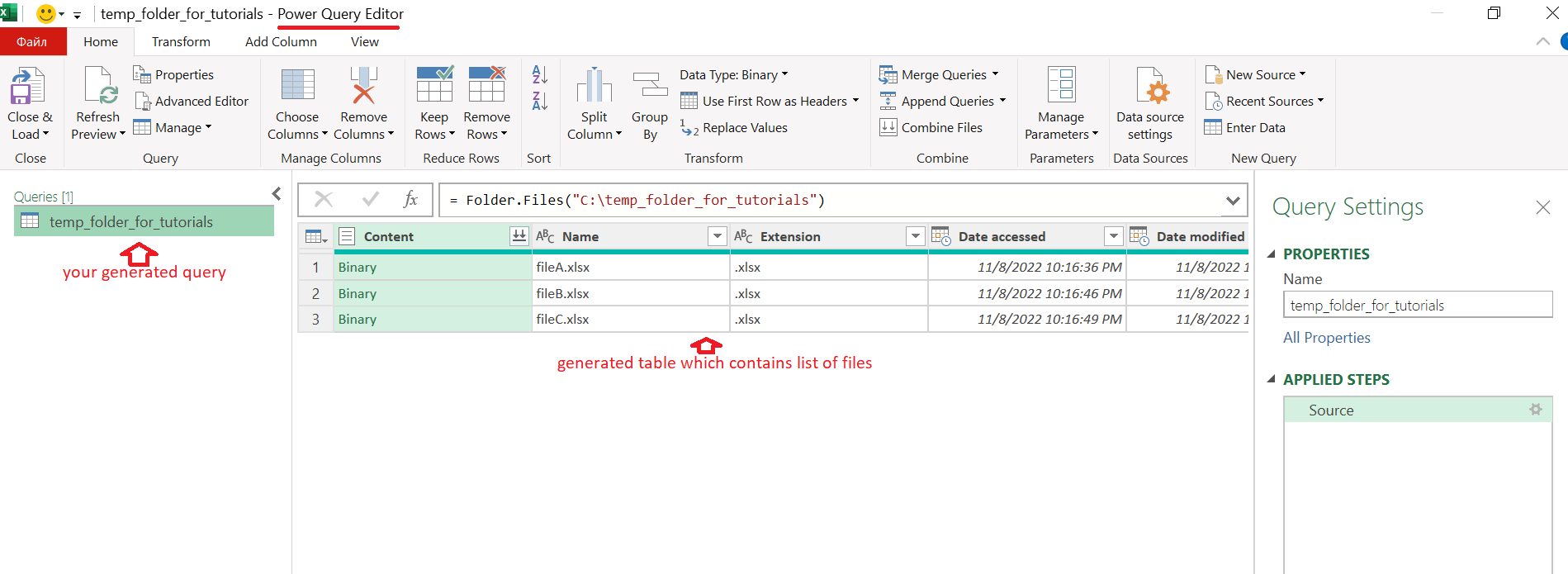
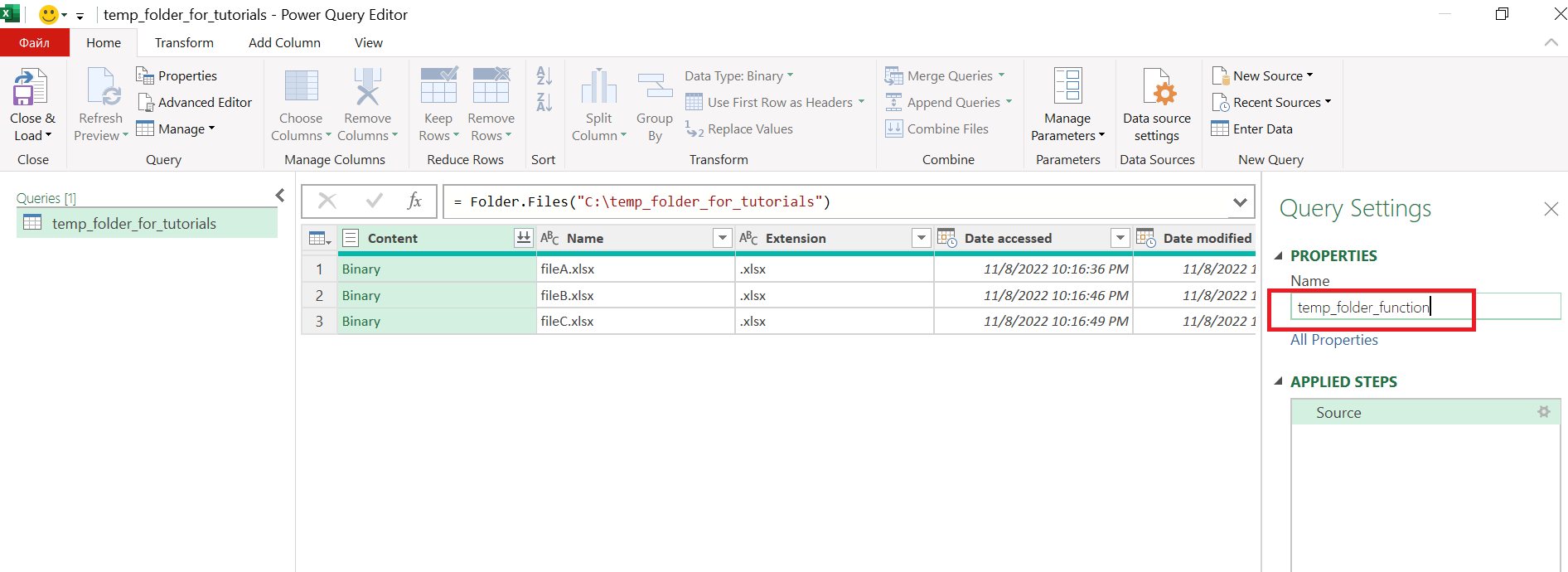
To the right of the editor we have Query Settings. In this section we rename our generated query. Our new name of the query is temp_folder_function:
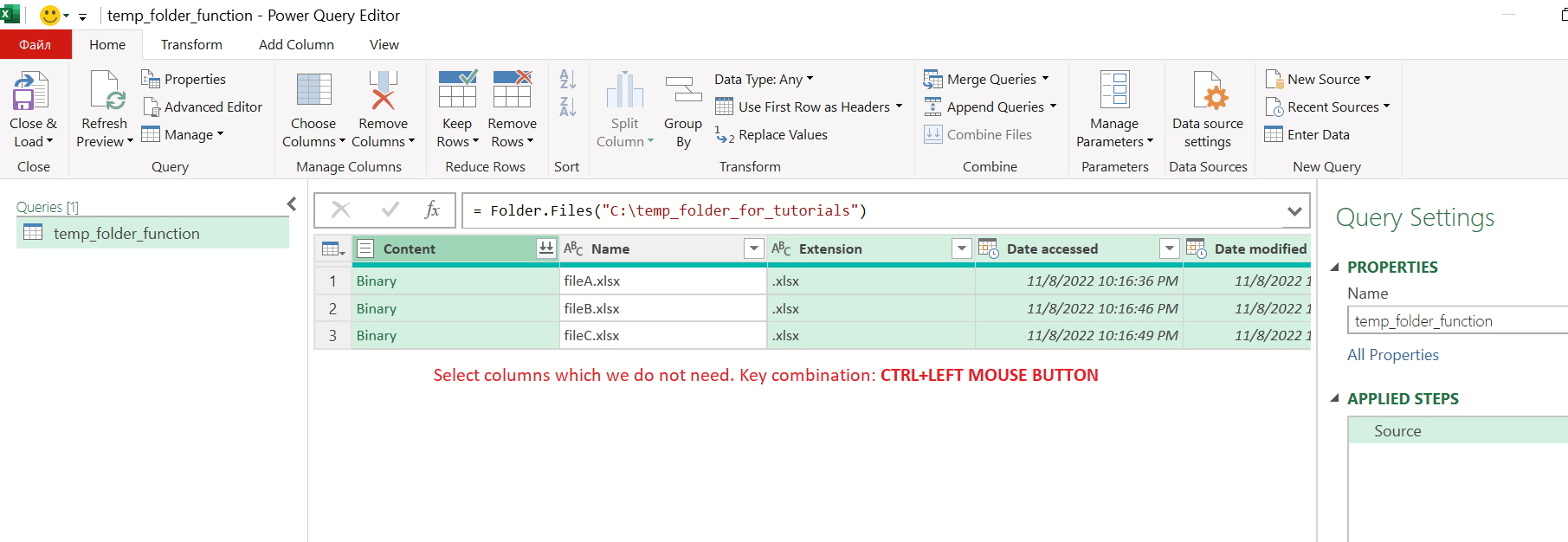
Select all columns except: Name, Folder Path.
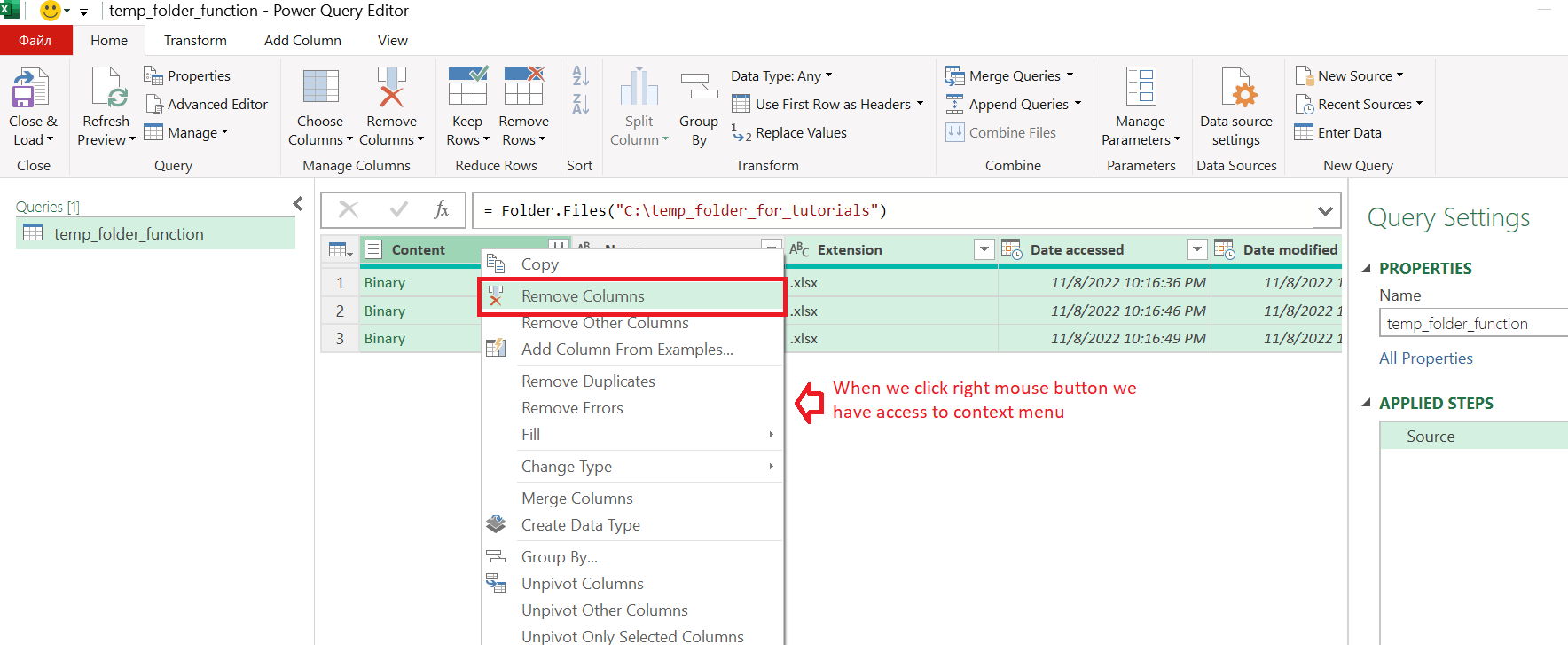
We should delete unnecessary columns:
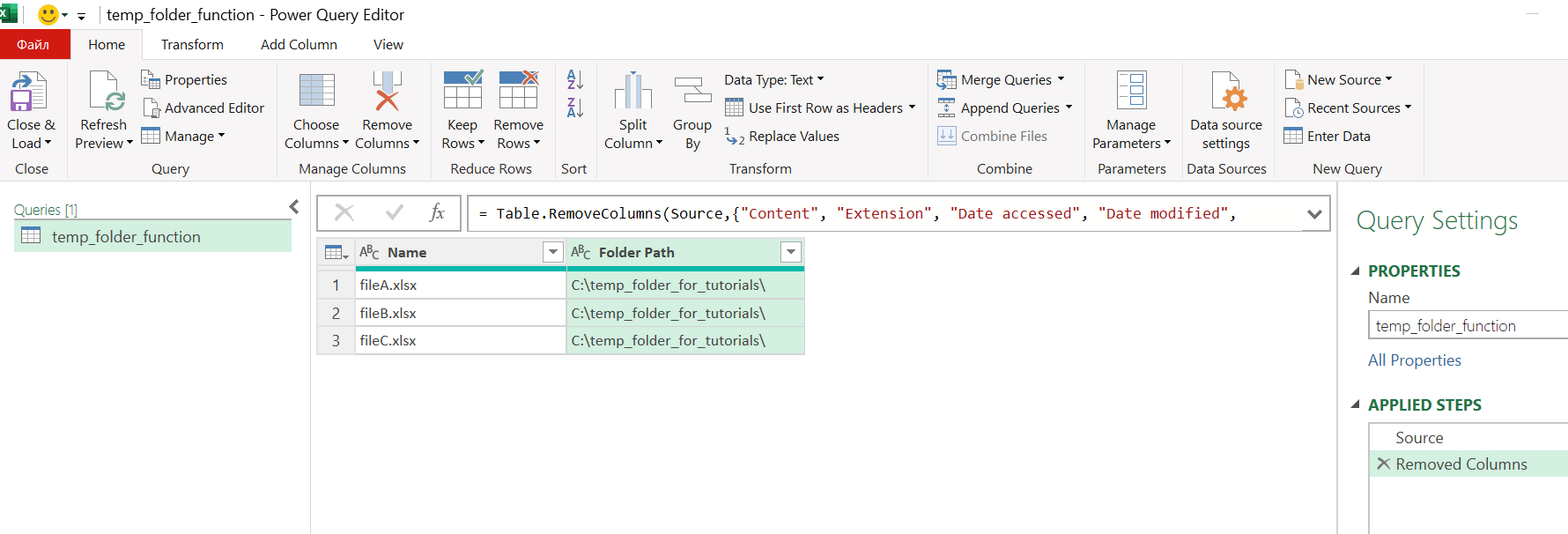
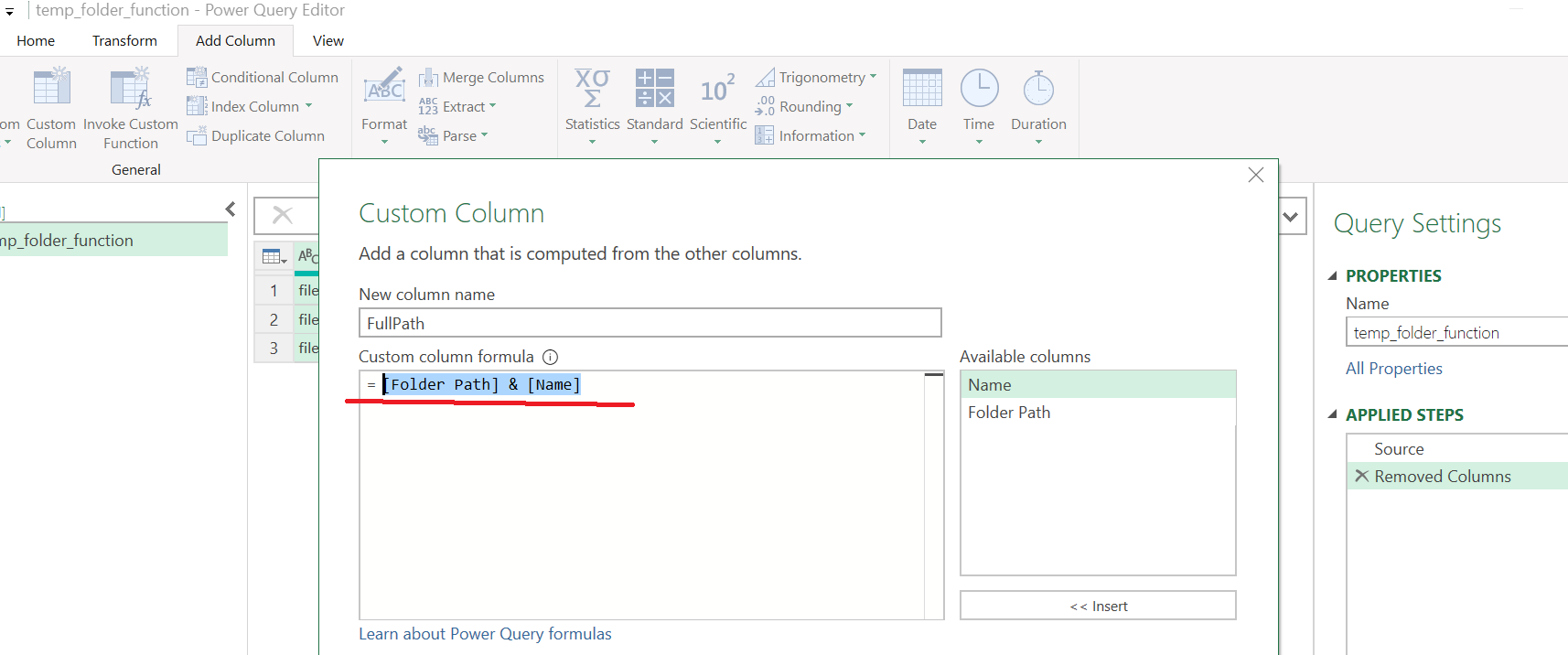
We add some additional column at the next step:
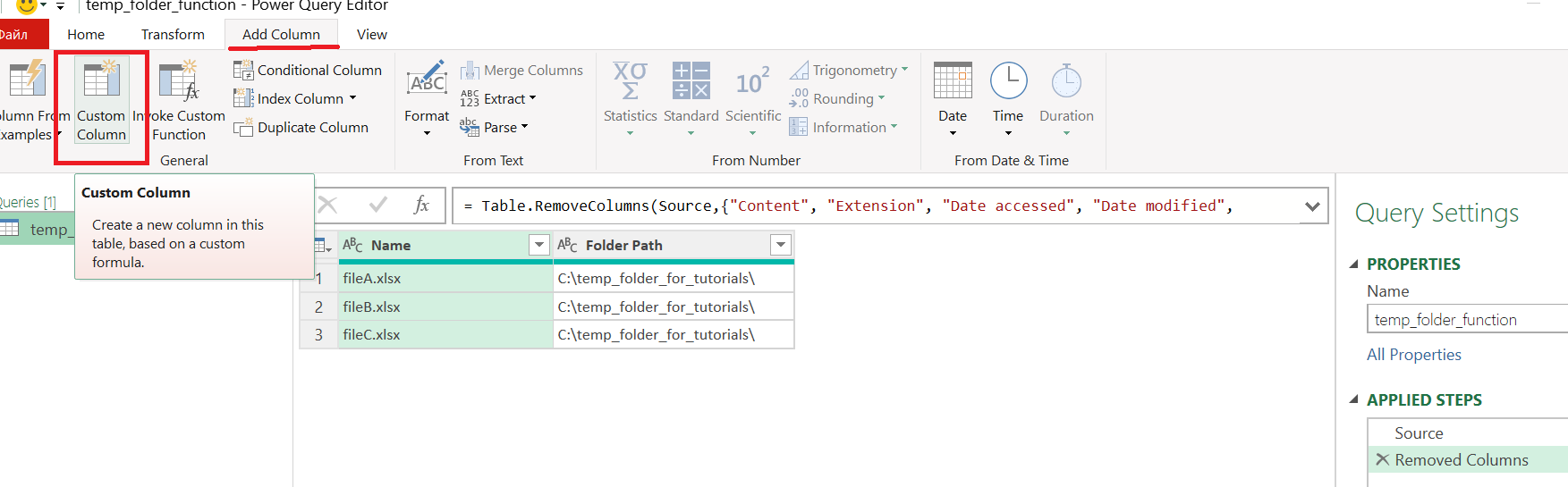
We specify the name of the column "FullPath":
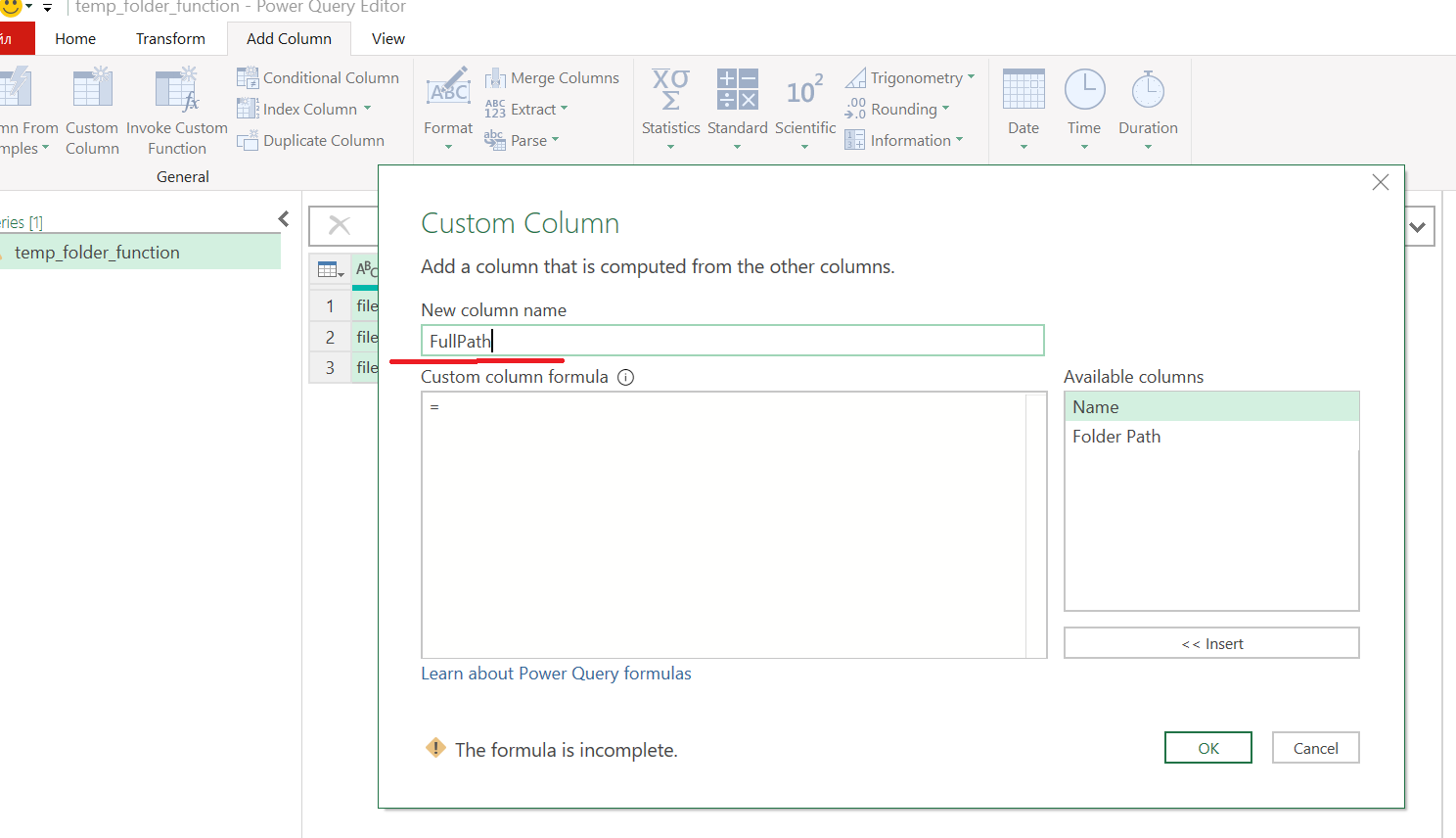
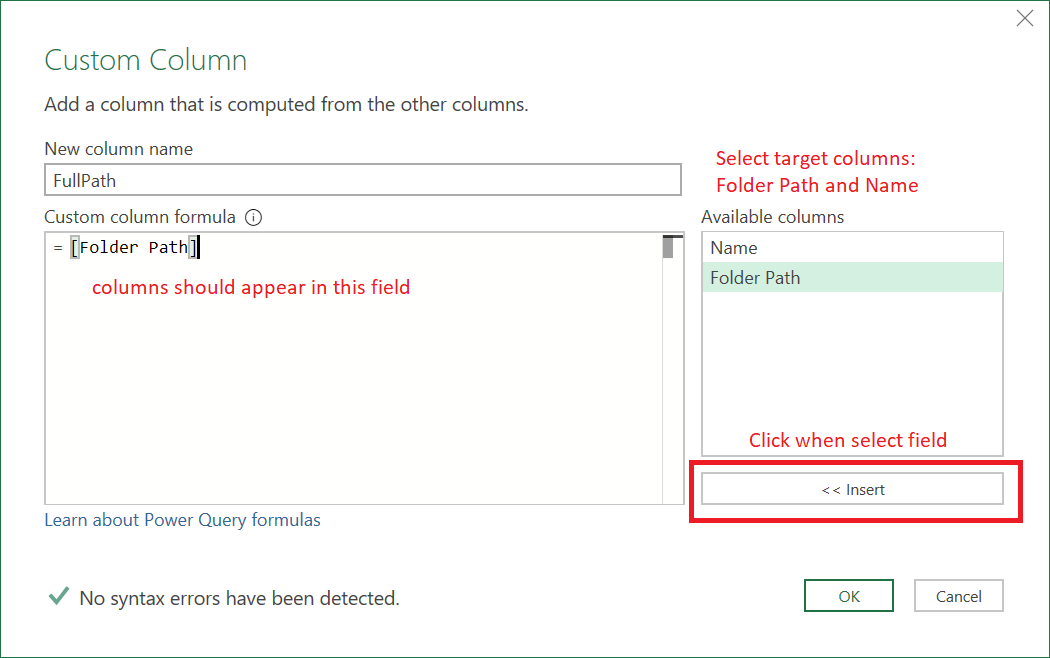
We should to concatenate two field, use operator of concatenation &. Our final formula [Folder Path] & [Name]
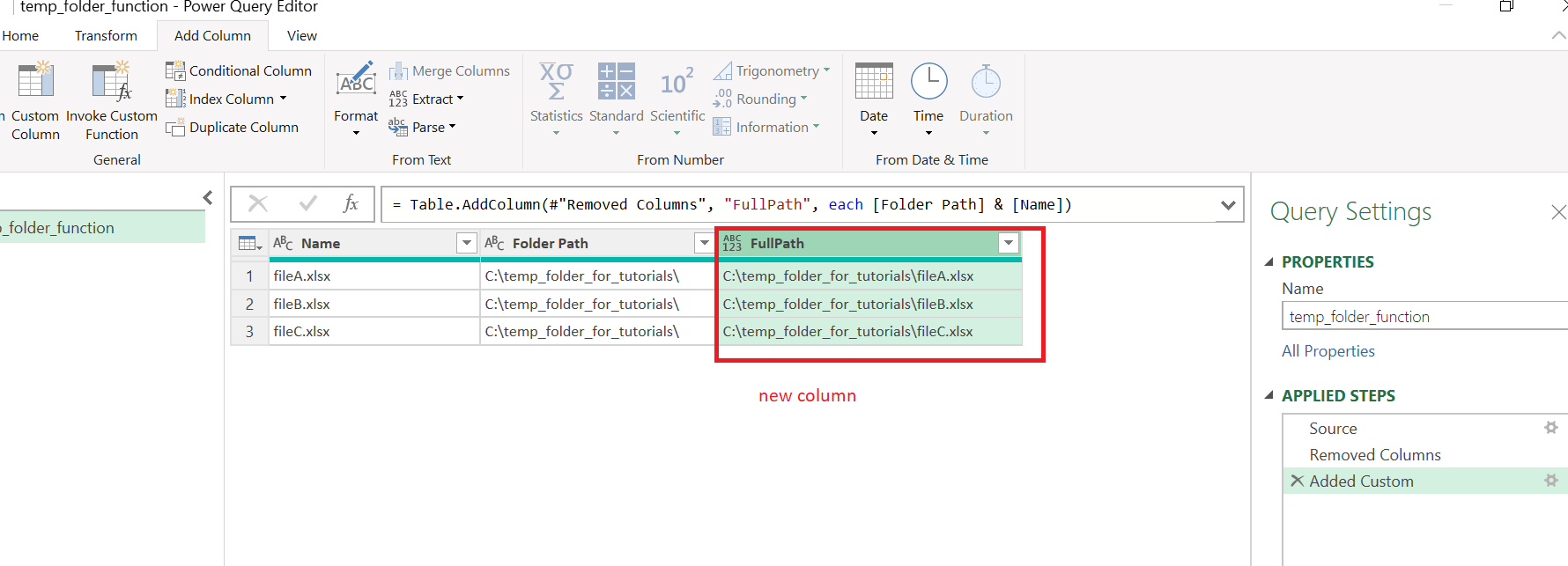
We completely finish our subtask #1.
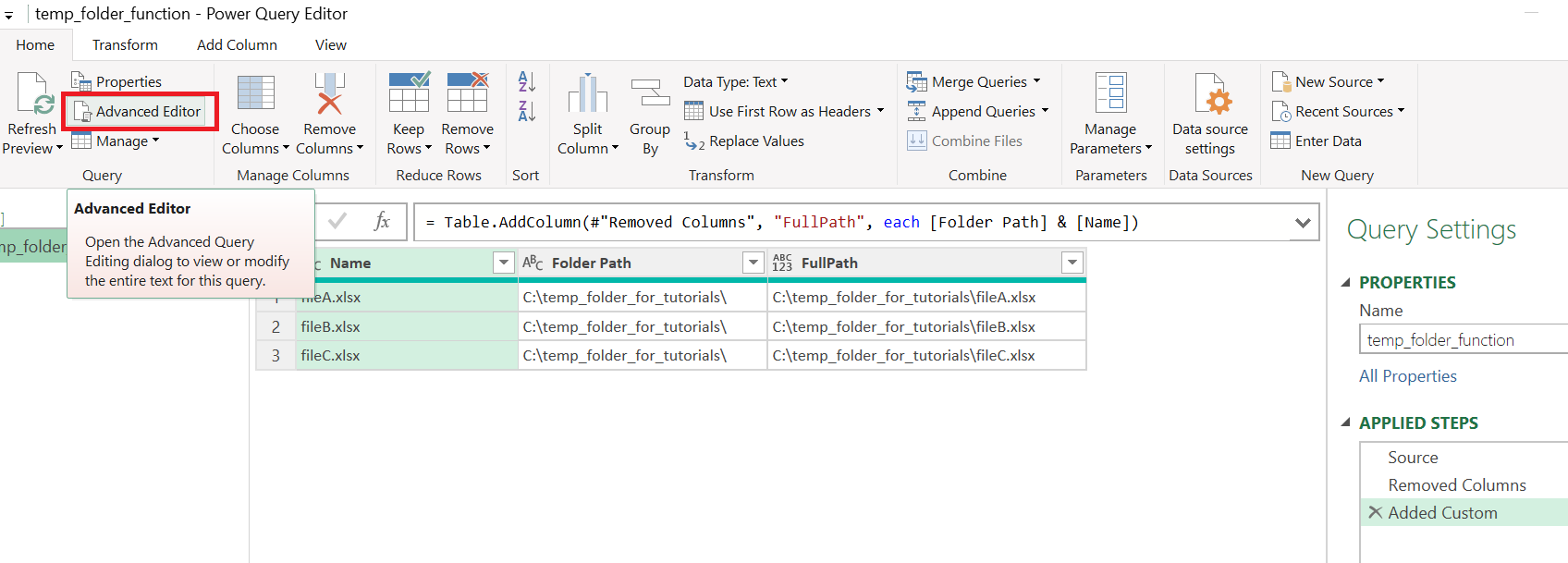
Subtask #2. Transform query to function. Navigate to Advanced Editor:
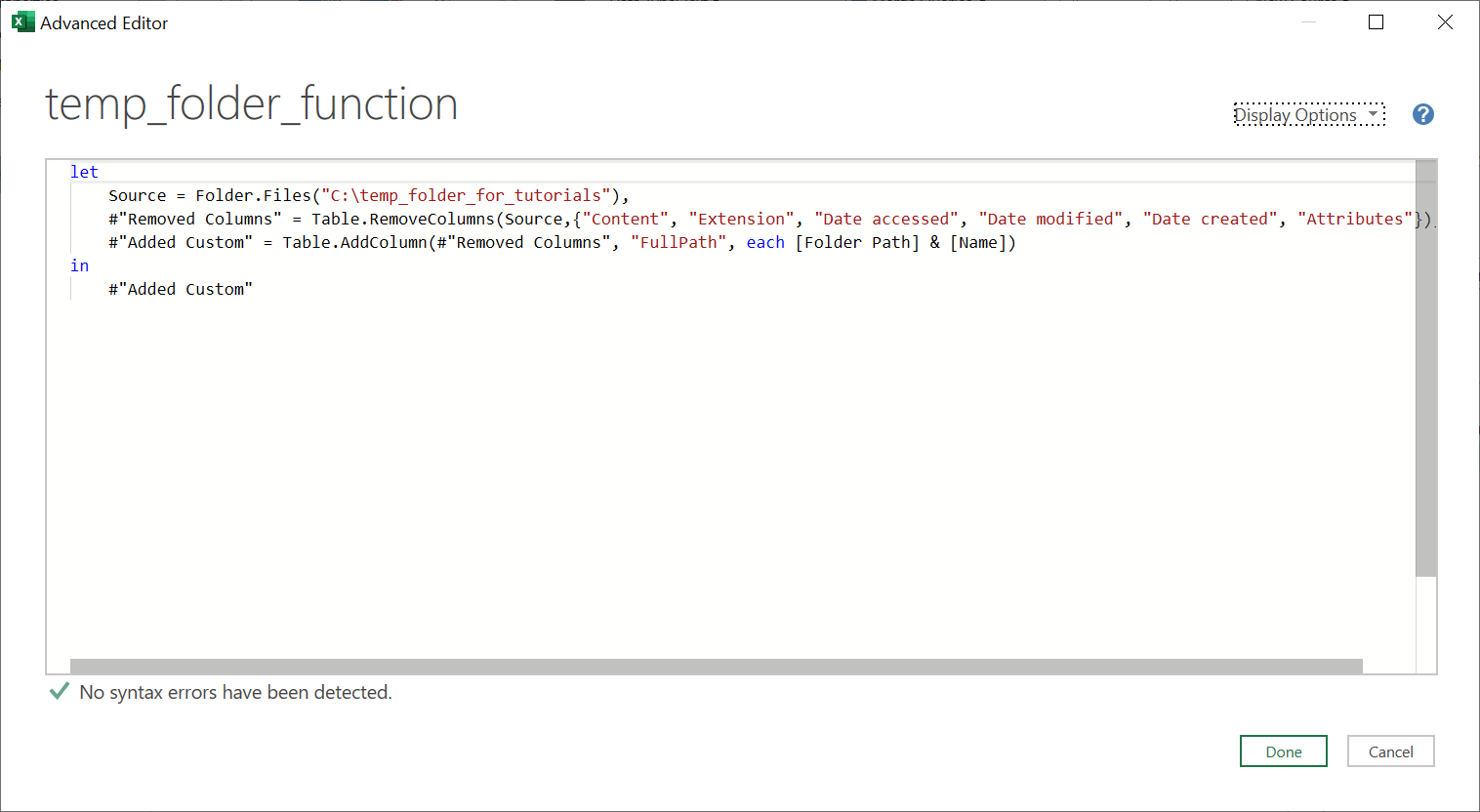
You need to define an input variable for the function:
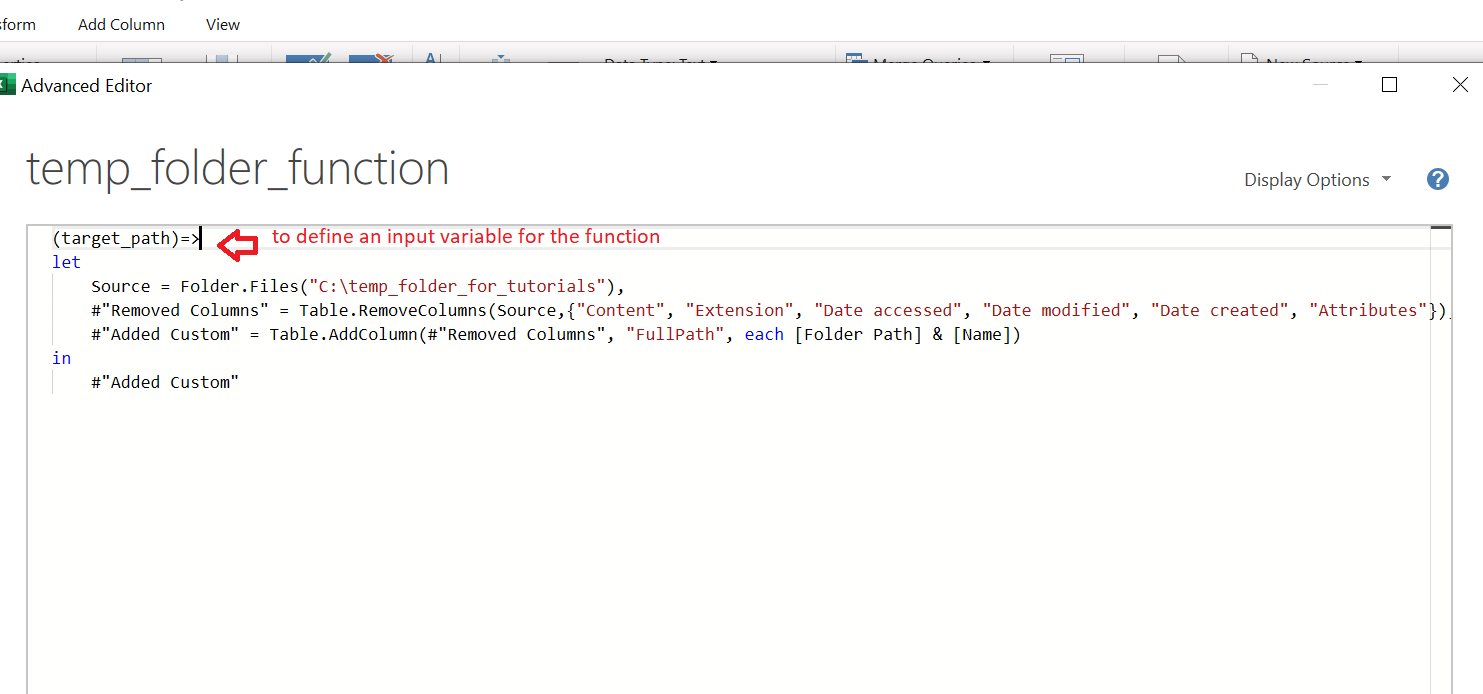
Next, you need to change the constant of the Folder.Files function - "C:\temp_folder_for_tutorials" (you will have the path to the folder that you specified during execution subtask #1).
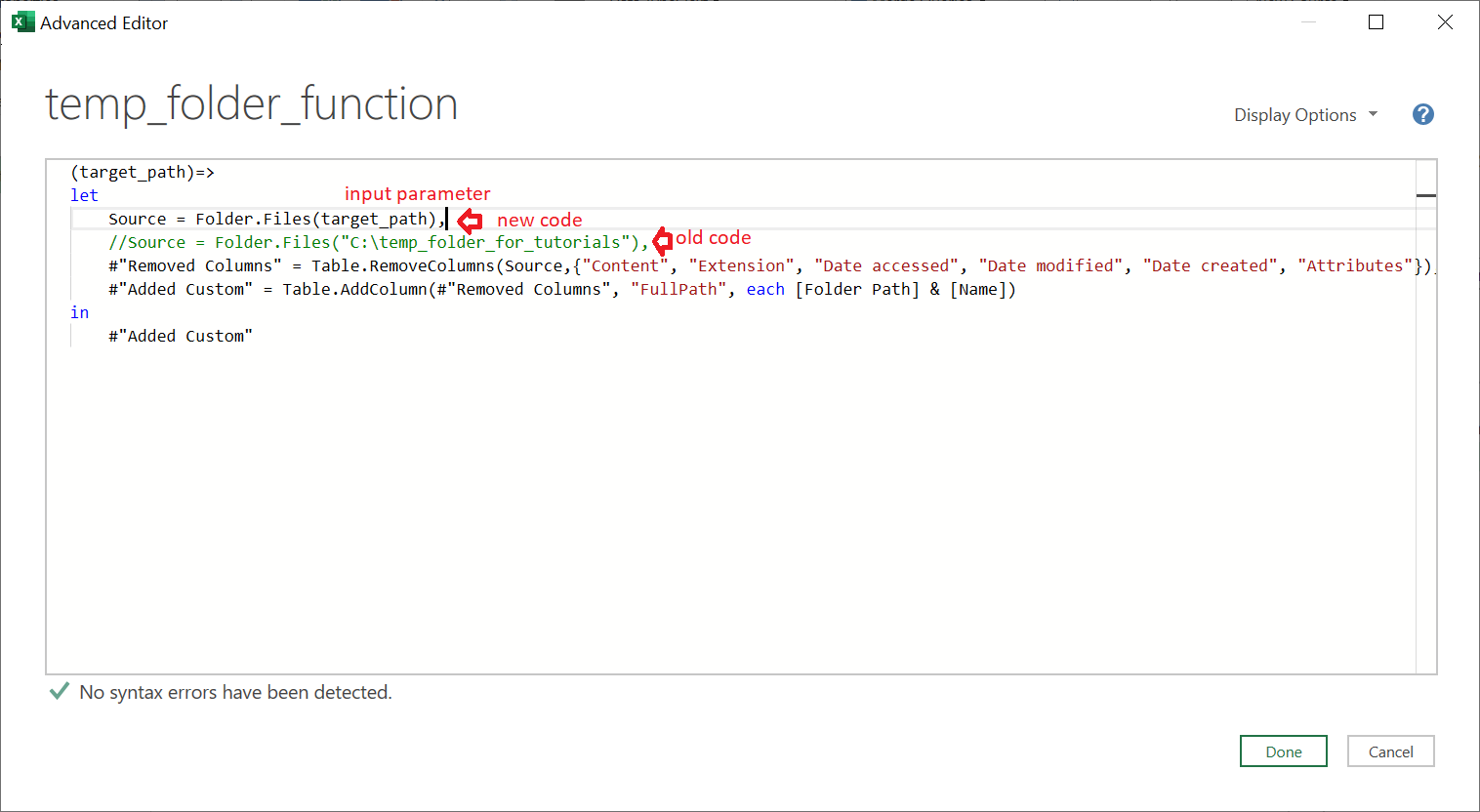
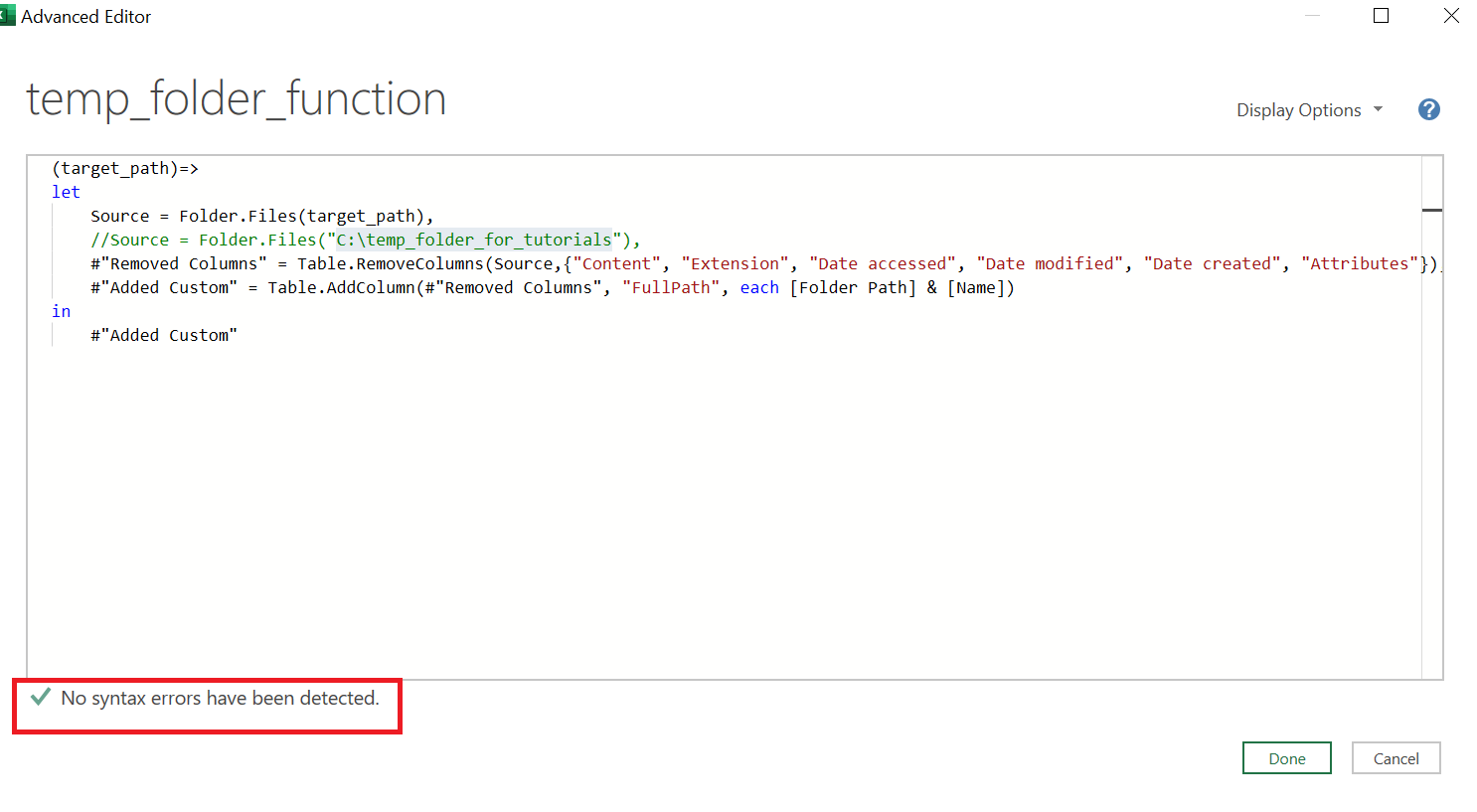
You need to check that there is a checkmark “No syntax errors have been detected”:
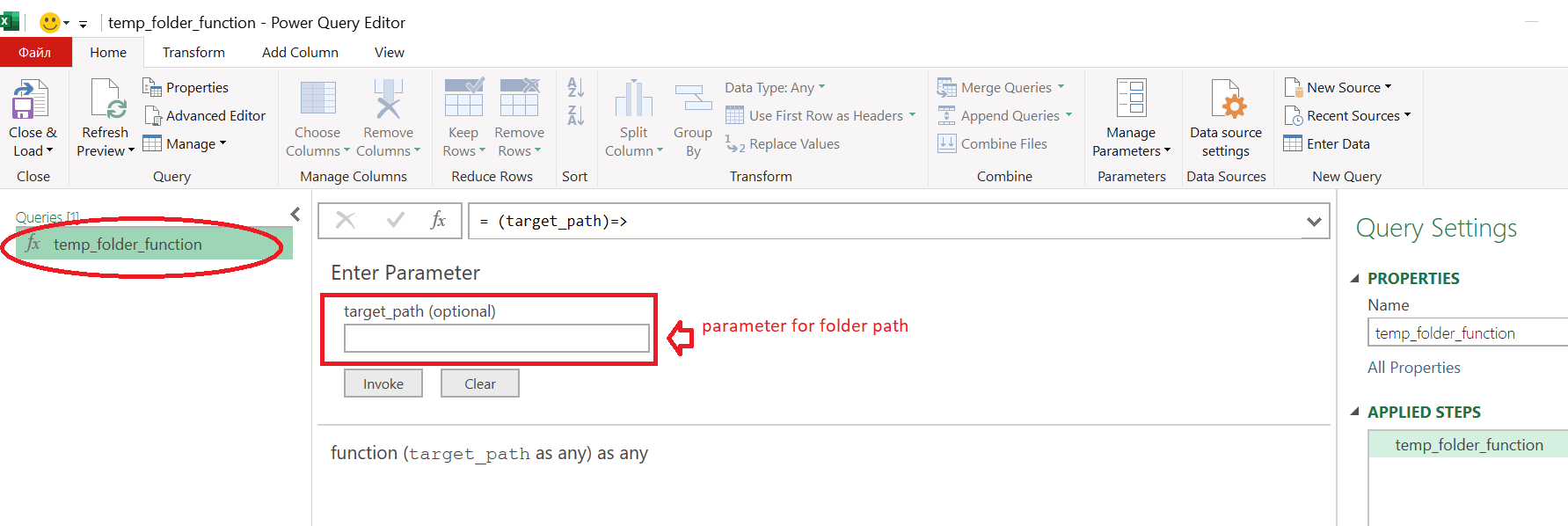
Then you should click on "Done" button. Then we navigate to Power Query Editor:
Close Power Query Editor and Keep changes:
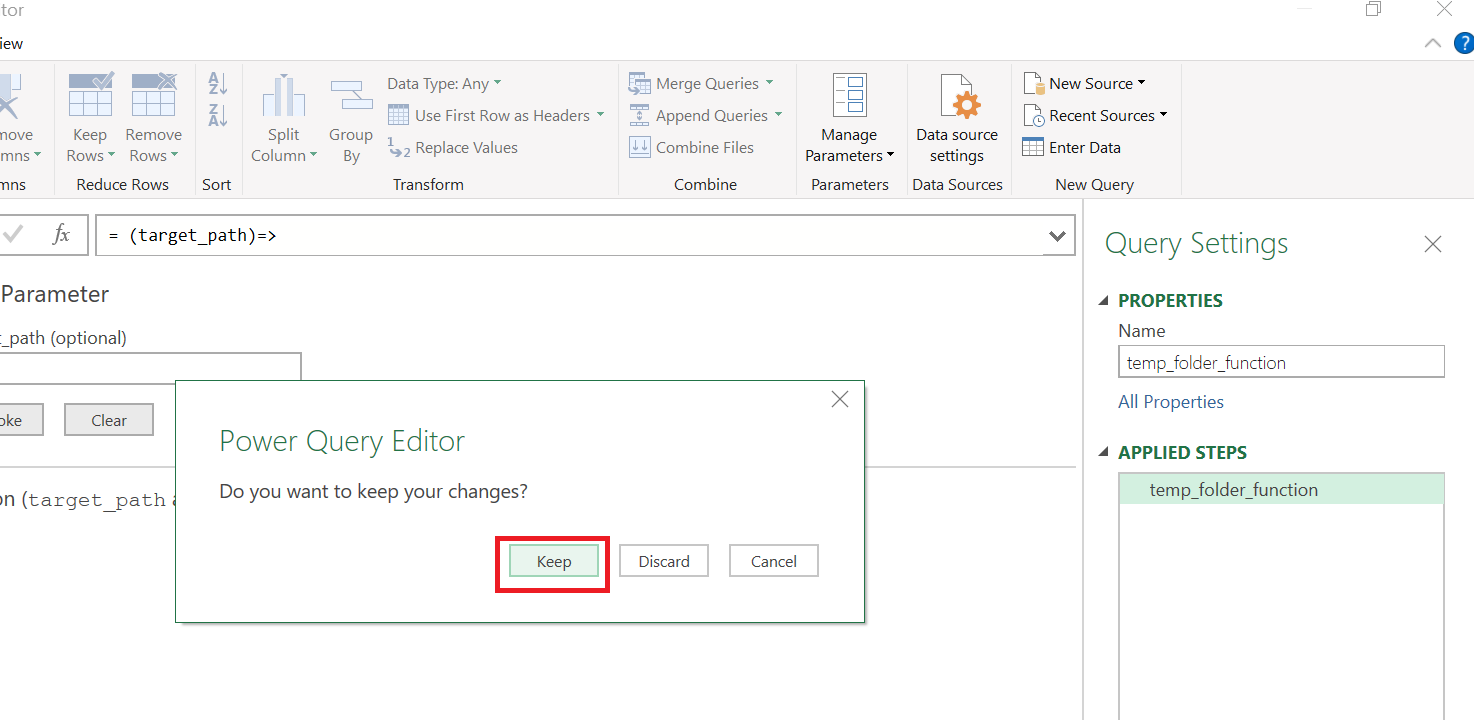
Subtask #2 is completed.
First of all, we have to create table. It will contain our parameter for the folder path:
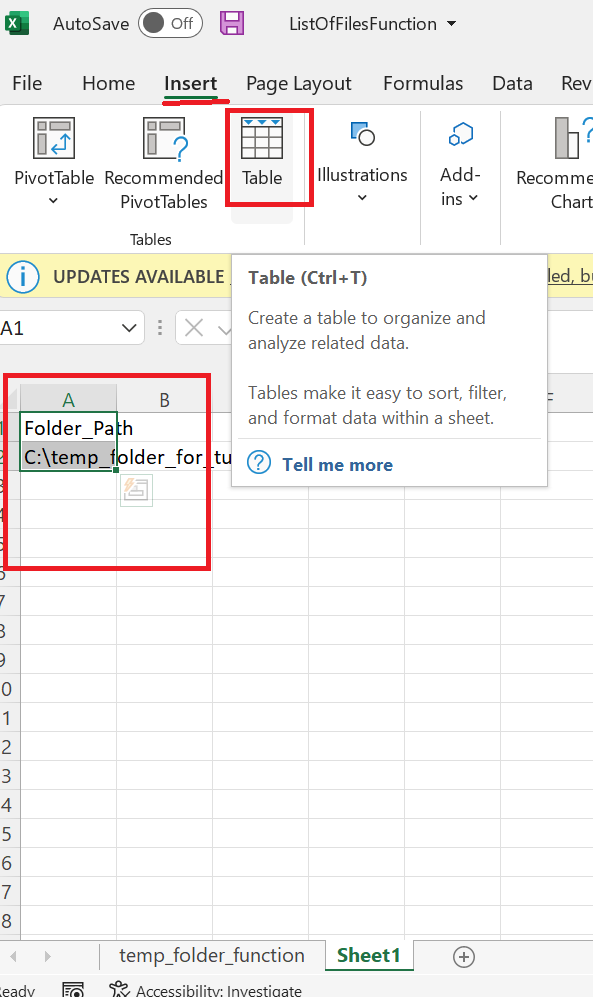
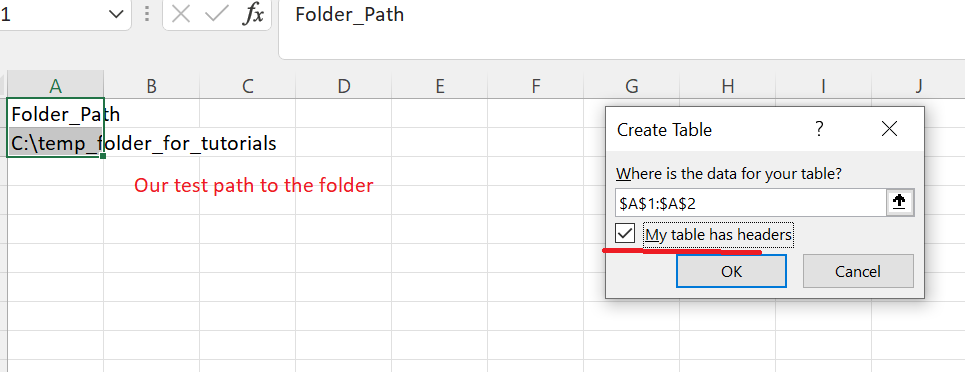
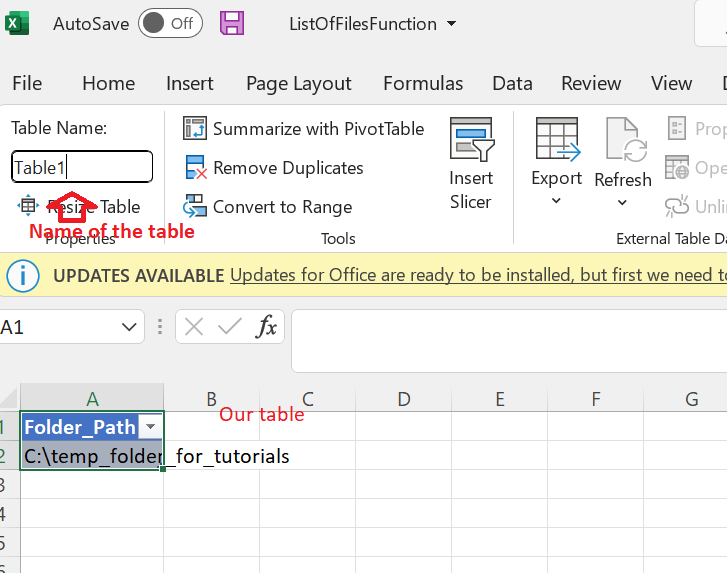
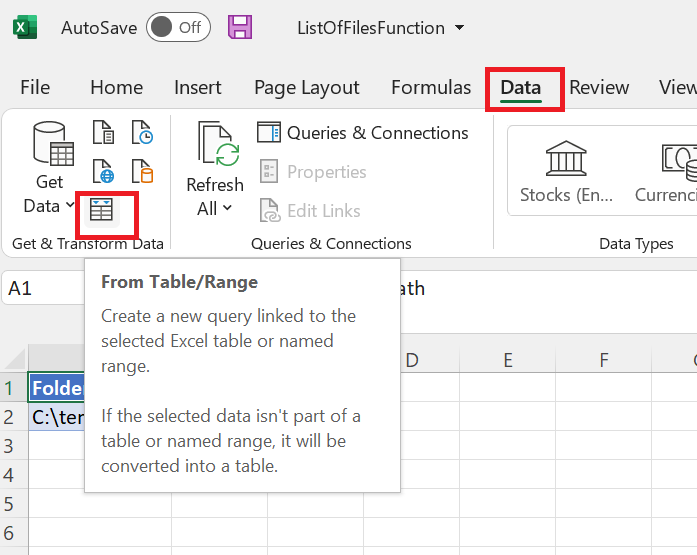
We should to generate a query that connects to the Table1 at the Sheet1. Navigate to the tab Data and click button From Table/Range
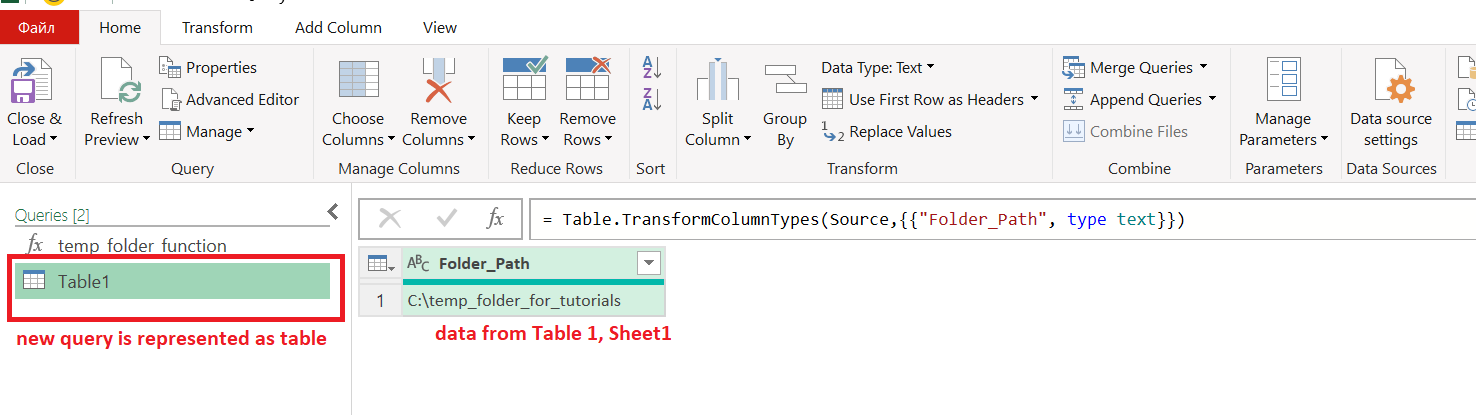
Program generated a query, named "Table1":
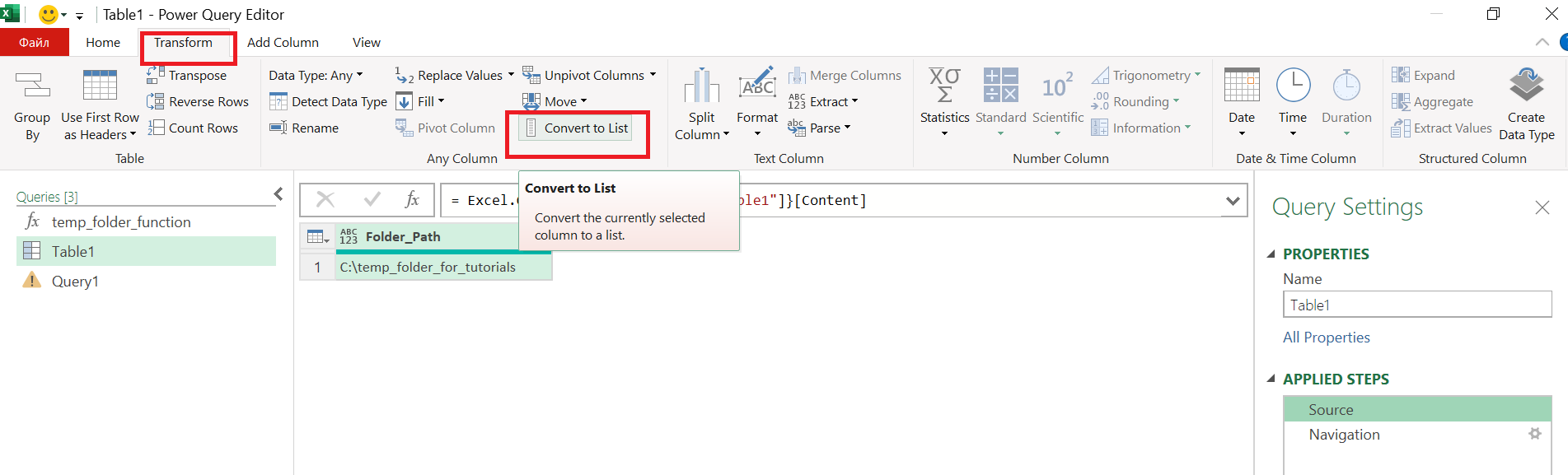
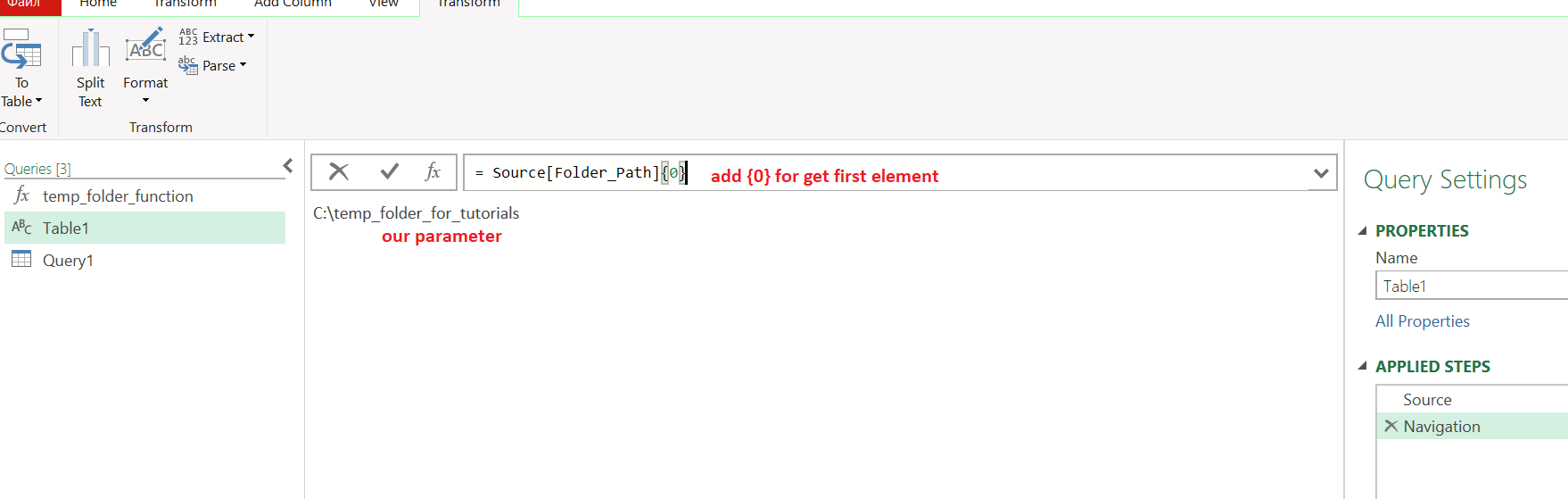
Next, we should transform the table into list and then change formula. In this case we will use {0} - get first element from sequence ({1} - get second element from sequence, and etc.):
Finally, we have to create acnew query for our final result table:
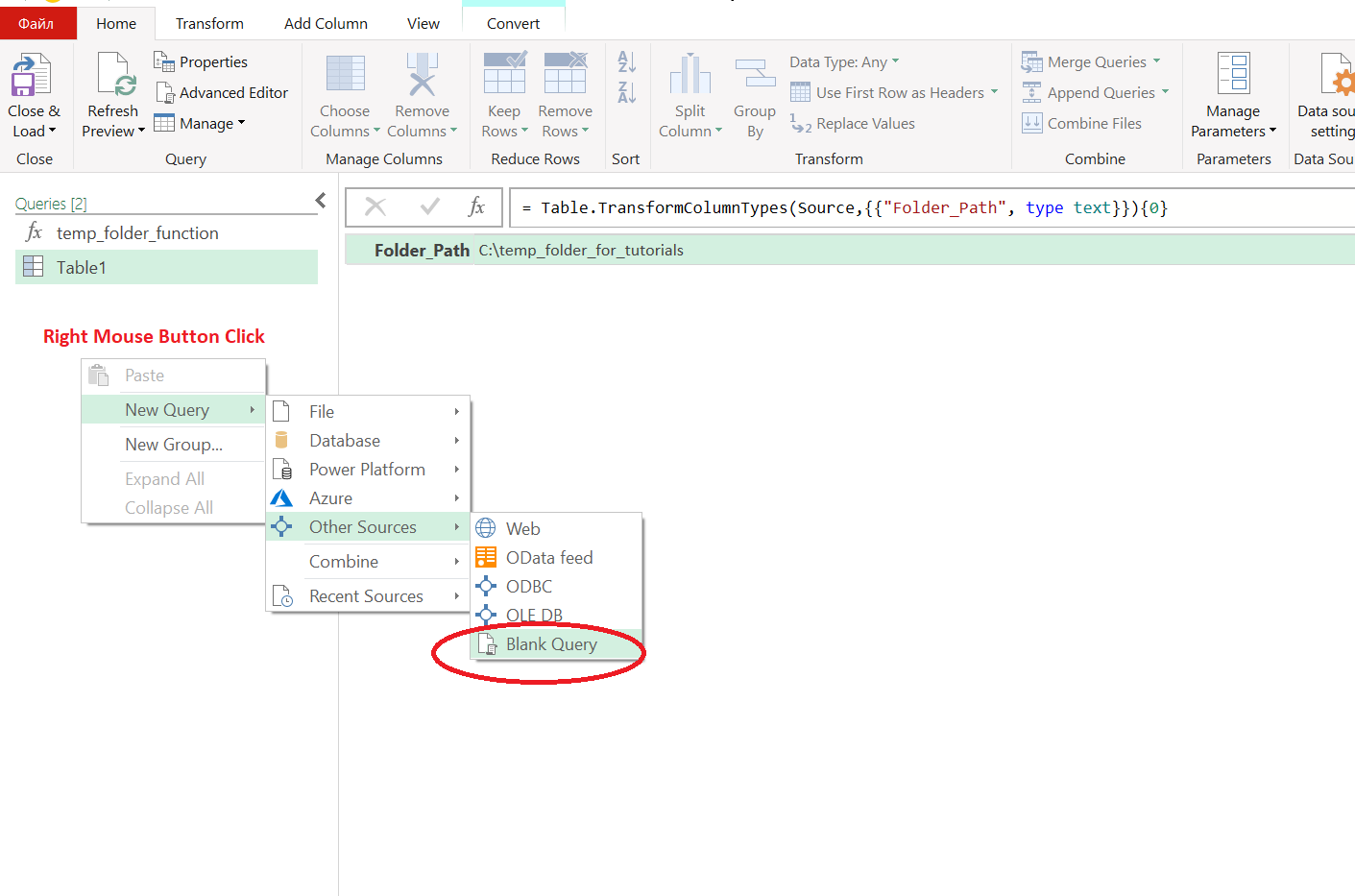
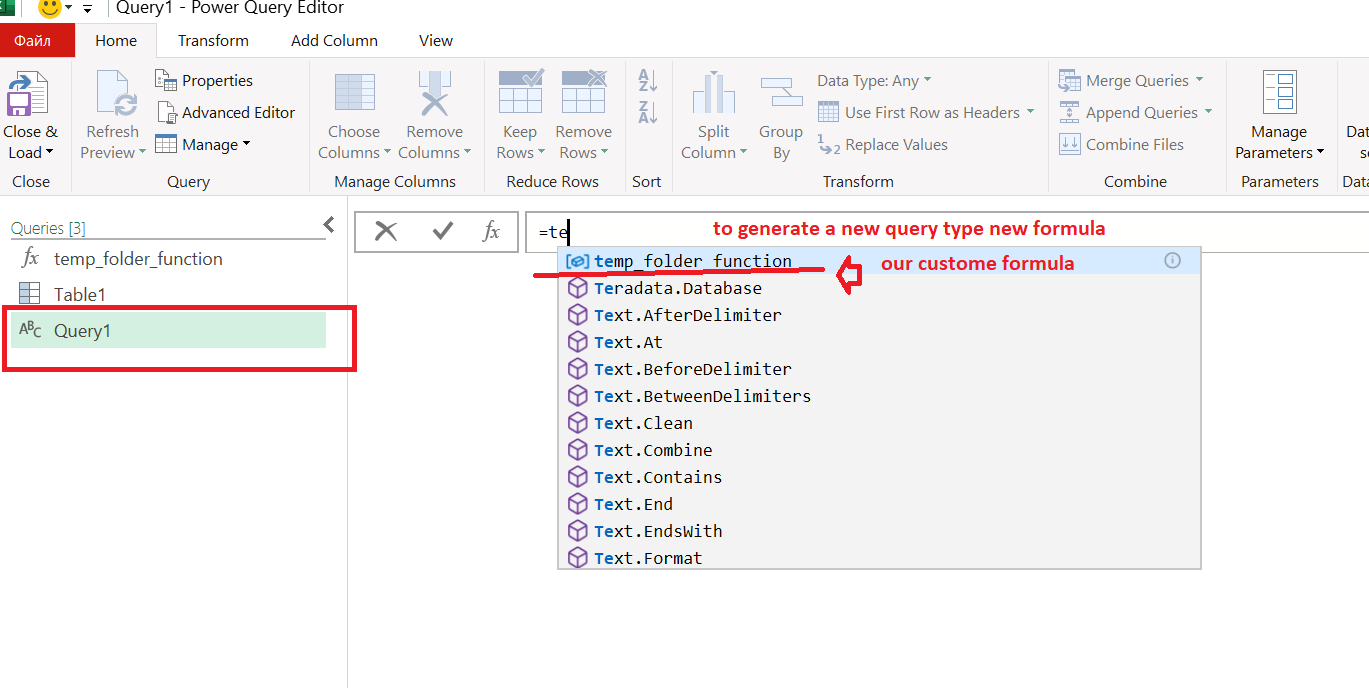
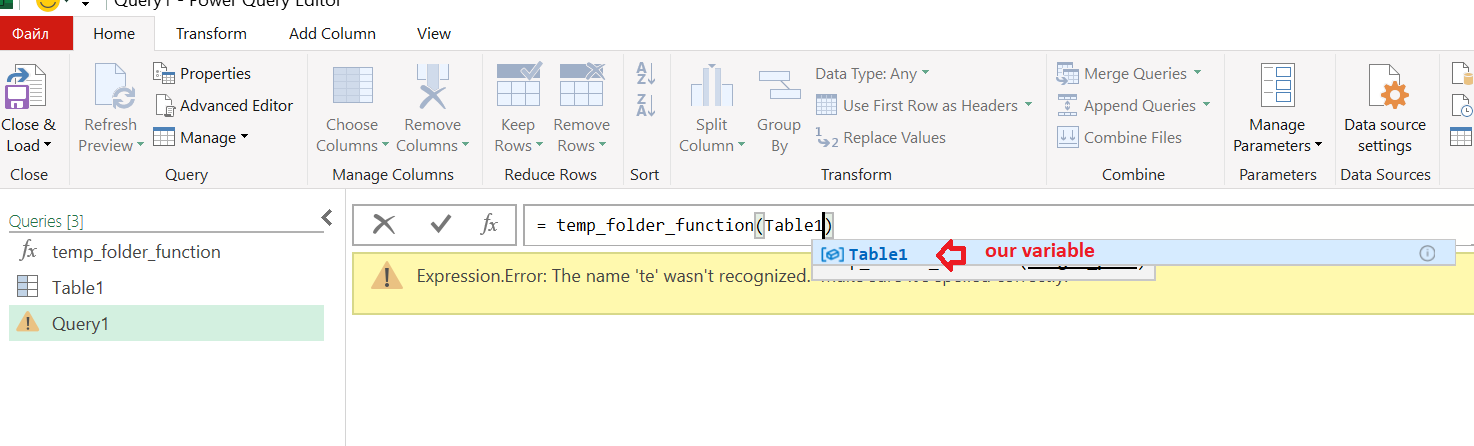
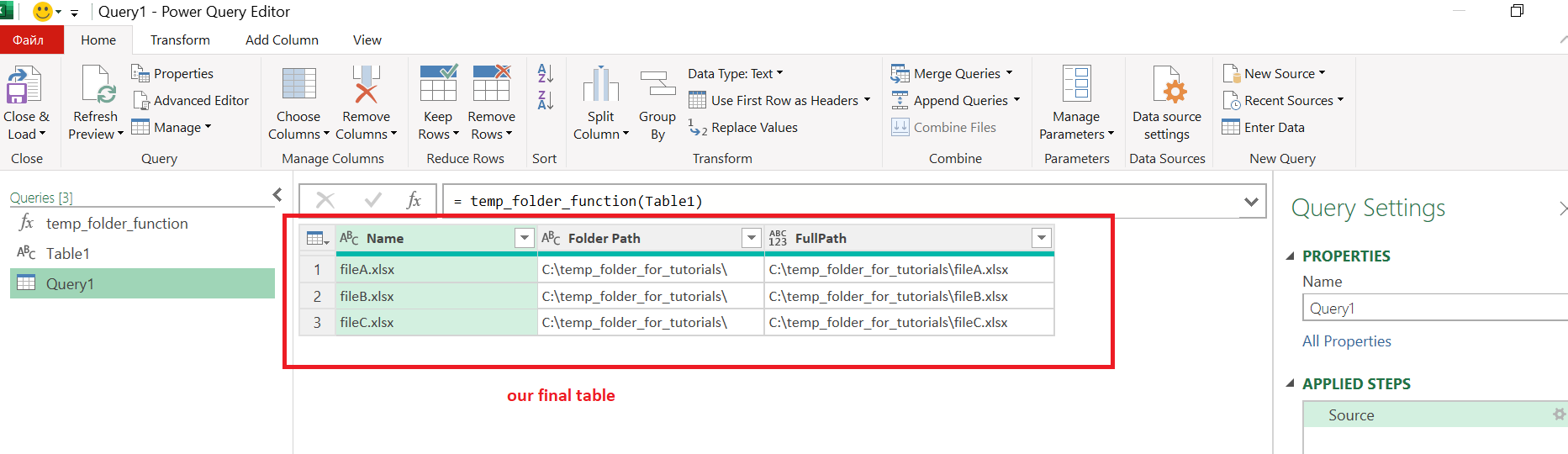
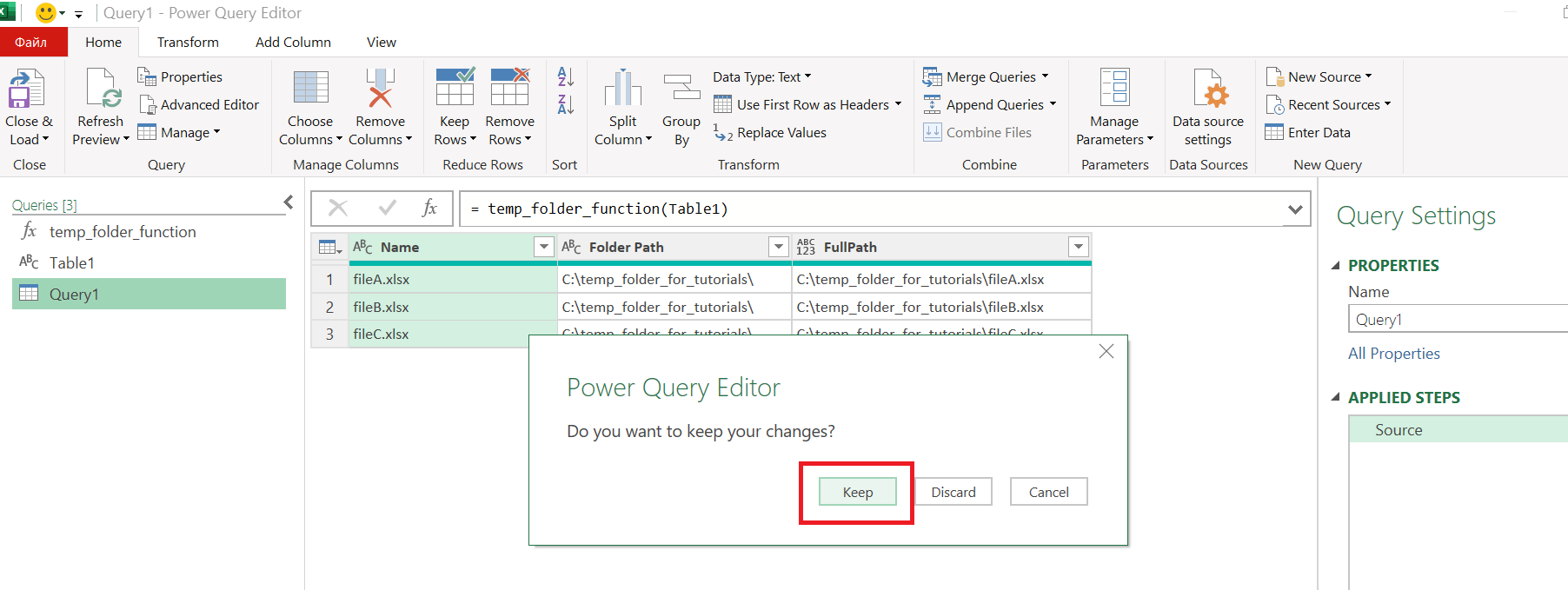
We create our final table. Exit Query Editor and Keep changes:
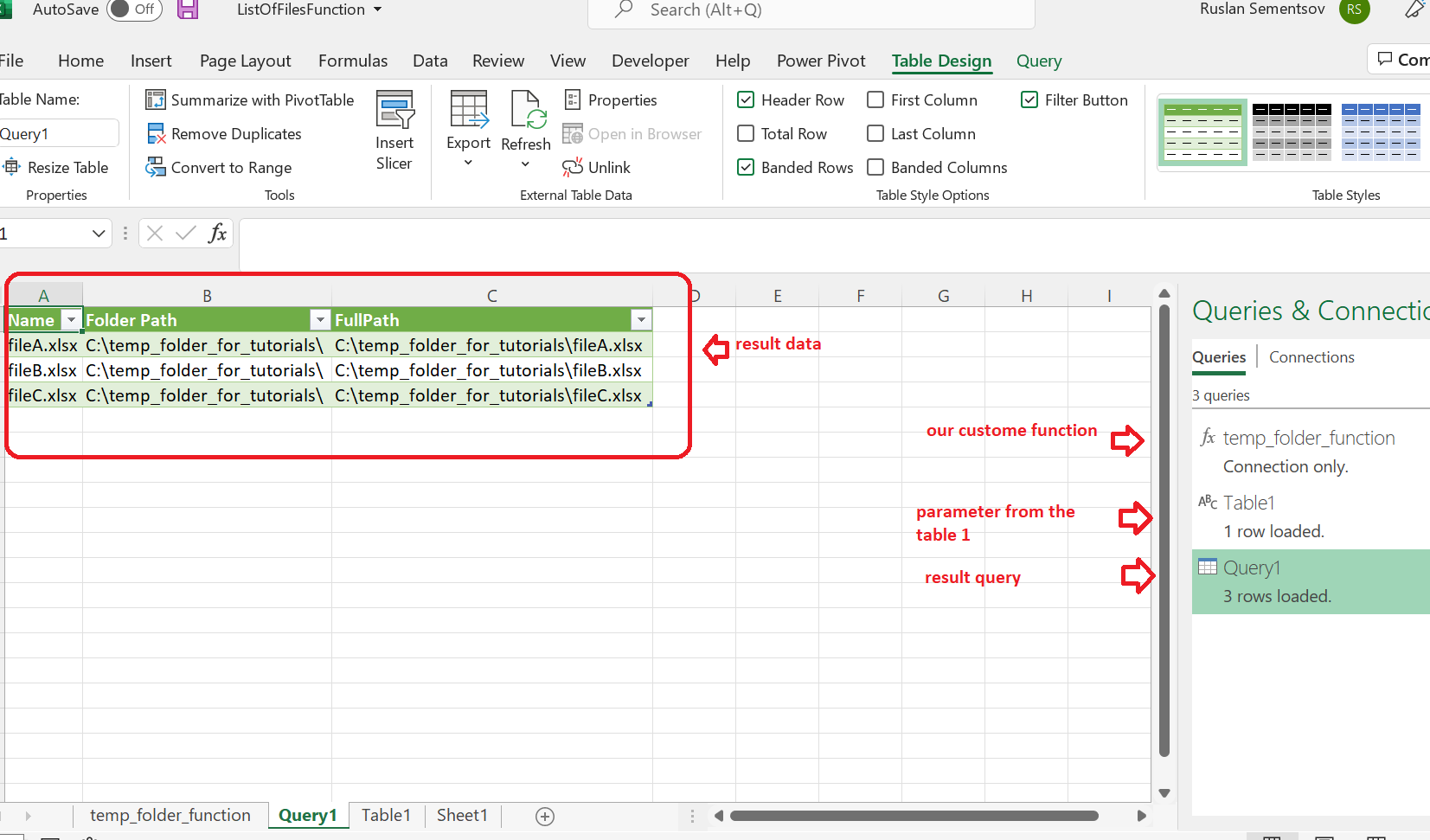
Our subtask #3 and example is successfully completed:
See new examples for Power BI and Power Query at https://virtualanalytics.azurewebsites.net/ Thank you!